


The short version
Customer.io launched its AI agent ("the Agent," in beta) in April 2026 and has since made it the center of the app. As of October 2026, six moves make the launch work:
- It lives where people land. The home page now opens on "What should we work on?" The old dashboard is one click away.
- It suggests work from your data. "Review your 476 tracked events," not "Try our AI."
- A click becomes the prompt. Each suggestion sends a full brief, so nobody faces an empty box.
- It asks with choices. Its questions come as options built from your real automations and events.
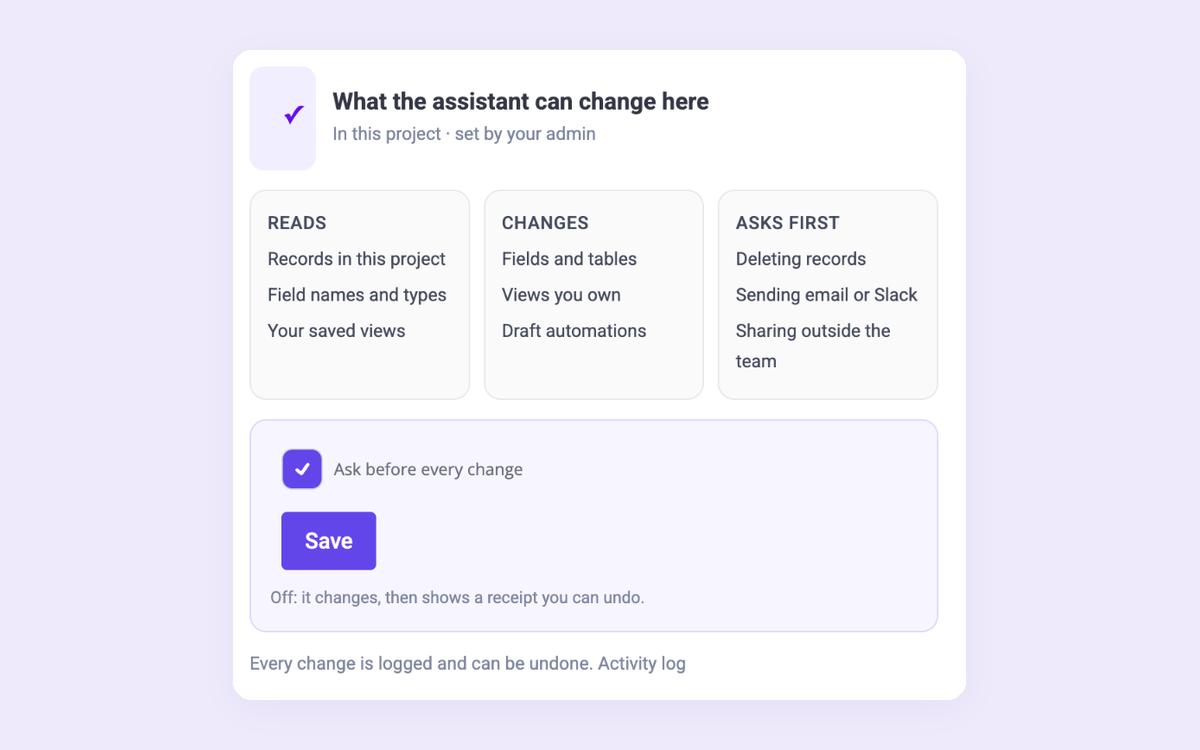
- One switch decides what it can change. Drafts are always fair game. Live campaigns need an admin to turn on "Edit live data." Claude or ChatGPT connected through Customer.io's MCP get a matching switch of their own, also off by default.
- It shows its work. Every change ends with a diagram, "What I changed," "Things to know" and next steps.
At a glance
| Customer.io | Shopify | |
|---|---|---|
| Where the AI lives | In place of the home dashboard | Next to the setup checklist |
| How it starts | Suggestion cards that write the prompt | A prompt box with a suggested first ask |
| How it asks | Multiple-choice questions built from your data | Conversation, then "just say the word" |
| Trust model | Drafts only, until an admin allows live edits | Asks before every action |
| Outside the app | MCP with its own switches, off by default | Dev tools for builders; store tasks run on your own login |
1. It lives where people already land

Log in and Home greets you by name: "Hope your day is going well, Jonathan." Then come your latest drafts, starter cards for a new automation, broadcast or segment, and a chart of what you sent this month. Scroll down and the page turns into a question: "What should we work on?"
At the very bottom is one quiet line: "Miss the classic dashboard? It's still here."
Why it works:
- The AI isn't a new place to go. It's on the page people open every morning.
- The old view is still there. Existing users don't lose anything, so there's nothing to complain about. Everyone else gets the new view first.
- It keeps its personality. Home also has two arcade games ("Flappy Mail" and "Message Invaders") with a high-score table. The AI moves in next to them as part of the product, not a bolt-on.
2. It suggests work from your data

"What should we work on?" shows four cards:
- Optimize your welcome series: "Use behavioral branching to tailor the onboarding experience for new Candu users based on their actual activity."
- Identify your most engaged users
- Run your first A/B test
- Clean up your event data: "Review your 476 tracked events to remove redundancies and keep your workspace organized."
Look at the copy. "New Candu users." "Your 476 tracked events." These read like advice from someone who has looked at your account, not a tour of AI features.
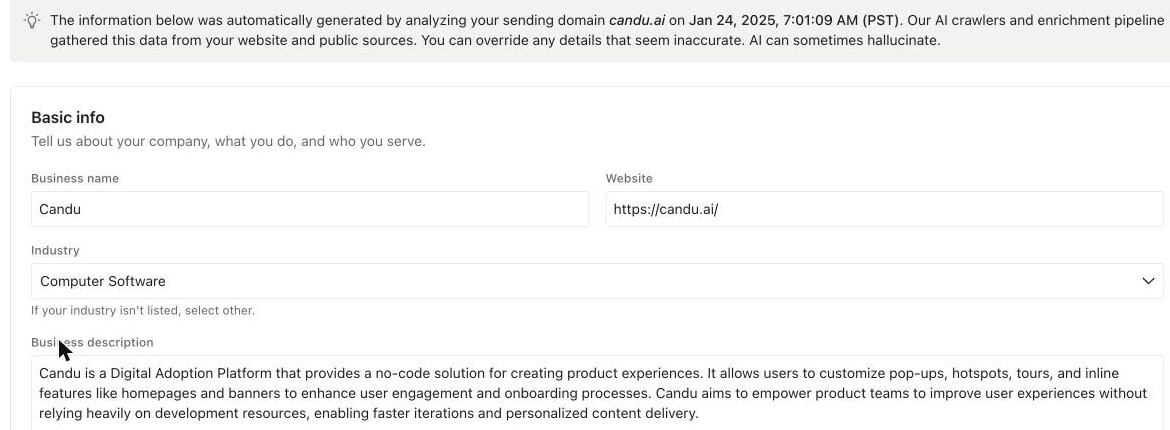
It knew us before we typed anything, too. Under AI settings, Business context had already been filled in "by analyzing your sending domain candu.ai": what Candu does, who it's for, and sliders for brand voice (formality, humor, energy). You can edit all of it.
3. A click becomes the prompt

Click a card and the Agent opens with a full prompt already sent. Here's what "Identify your most engaged users" sent for me:
"I want to build a segment of my most engaged users so I can treat them differently... Ask me what engagement looks like in my product: which events signal real usage, how often they should be doing them, and over what time window. Then help me build a segment using event frequency and recency conditions, and suggest what I should do with this audience once I have it."
I didn't write that. The card did. The prompt says what to ask, what to build and what to suggest next. That's where Customer.io's product knowledge lives.
Why it works:
- Nobody faces an empty box. Most "Ask AI" launches give you a text field and hope. This one gives you a job.
- The good prompt is the default. Users get the expert version of the question without having to know how to write it.
4. It asks with choices, built from what's already there
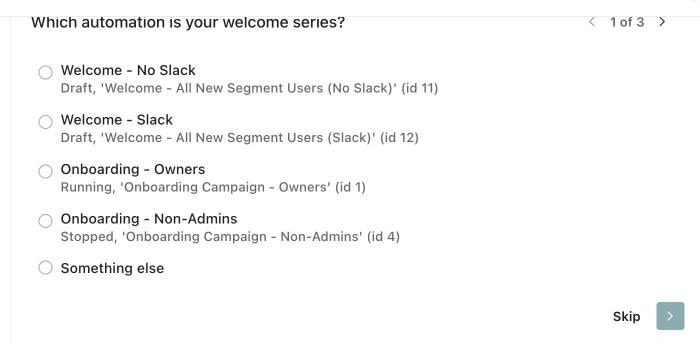
Before asking anything, the Agent looks around. The collapsed log reads "Read a file and ran 2 commands · thought for 11s." Then it asks one question at a time, "1 of 3," as options:
"Which automation is your welcome series?" listed our four real welcome and onboarding automations, each with its status and ID (two drafts, one running, one stopped), plus "Something else" and Skip. The next question listed our real product events ("Created content: dashboard.content.created", "Published content: dashboard.editor.publish") as checkboxes.
Why it works:
- It doesn't make you type what it can look up. It found the answers it could, and only asked about what it couldn't know.
- The choices teach you. Seeing your own events listed as "signals of engagement" is a small lesson in how to think about the job.
5. One switch decides what it can change

This is the part to study.
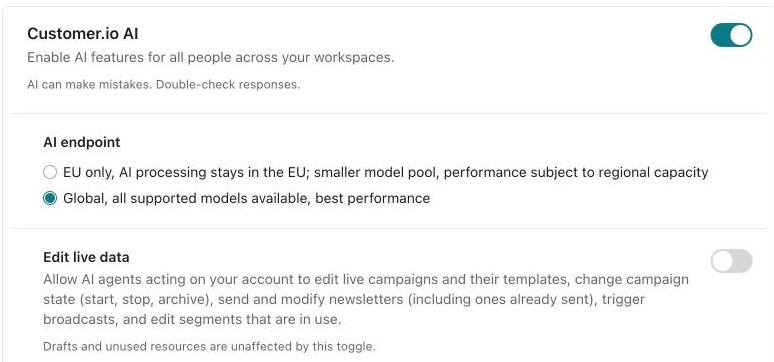
In AI settings there's one switch called "Edit live data." It decides whether AI agents can "edit live campaigns and their templates, change campaign state (start, stop, archive), send and modify newsletters... trigger broadcasts, and edit segments that are in use." Under it: "Drafts and unused resources are unaffected by this toggle." In our workspace, it's off.
Here's what that line does to the experience. I answered the Agent's three questions with five clicks: the draft welcome series, "created content" and "published content" as engagement signals, and "published" as the goal. Then it went straight to work. No "shall I?" Its own log says why: the automation "is still in draft mode, meaning edits are allowed since live-data editing is off."
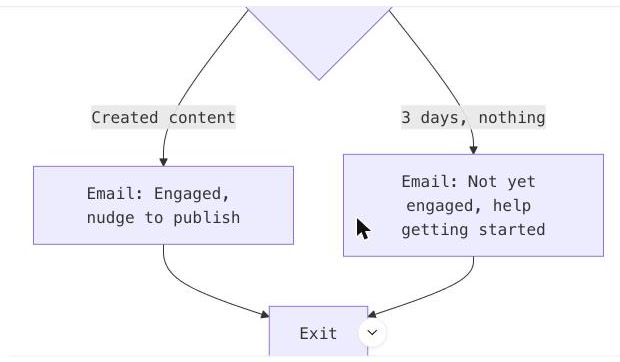
A minute later the draft had a new "Wait until" step, two branches with new draft emails, an early exit for anyone who publishes, and a conversion goal. The automation was still a Draft. Nothing was sent, and nothing live was touched.
Compare Shopify. Sidekick proposes everything, then waits for "just say the word." Customer.io draws a line around what the AI can touch, then lets it get on with the work inside that line. Both are good. Which one fits depends on what a mistake costs in your product.
The same kind of line outside the app. Customer.io also has an MCP server, so you can connect Claude or ChatGPT to your workspace. It has its own switches, set separately from the Agent's: "Allow MCP to edit live data" and "Allow MCP to access sensitive data" (emails, phone numbers), both off by default. With live edits off, an MCP client can create new things but can't change anything in use.
A few details show they built it for AI as well as for people:
- Reads, writes and deletes are separate tools, so your AI client can allow reads automatically and ask you before any write.
- The first thing it hands the AI is a set of instructions for the API, including when to preview a change before making it.
- The command-line tool works differently. It does whatever its access token allows, so treat that token like a password.
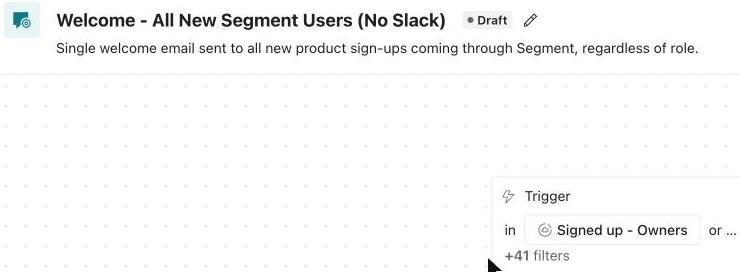
Read from Claude through the MCP on Oct 23: automation 11, "Welcome - All New Segment Users (No Slack)", state "draft".
So admins can trust their own Agent with more than someone else's AI, and each line is one switch. (Sources: Customer.io's MCP docs and AI settings docs.)
6. It shows its work

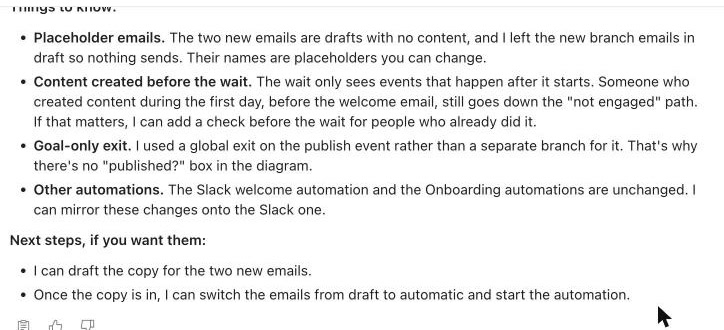

When it was done, the Agent didn't just say "done." It sent a summary in four parts:
- A flow diagram of the new series, so you can see the branches before you open the editor.
- "What I changed," numbered, starting with what it kept: "Kept your existing steps. The entry gate, the 1-day delay and the 'Welcome to Candu' email are untouched."
- "Things to know," including an edge case it found on its own: someone who creates content before the wait starts "still goes down the 'not engaged' path. If that matters, I can add a check before the wait."
- "Next steps, if you want them": write the copy for the two new emails, then switch them on.
It also said: "I read the saved automation back afterward, and the steps and wiring match the diagram below."
Open the automation and the handoff keeps going. Each new empty email offers "Build with the Agent" with a "Generate email" box, right on the canvas.
Why it works:
- You can check it in ten seconds. The diagram and the numbered list make a review quick, not a hunt.
- It says what it didn't do. The emails are empty and left in draft, and it says so.
- It checks its own work. "I read it back" is a sentence every AI change should end with.
It keeps working when you're not there
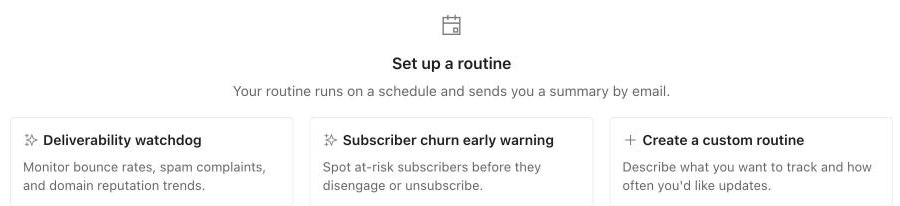

Two more pieces sit next to the chat. Routines run on a schedule and email you a summary, with starters like "Deliverability watchdog" and "Subscriber churn early warning." Skills are saved know-how the Agent reuses ("Skills teach your agent specialized knowledge"). Our plan allows three.
The order is the lesson: launch the chat, learn what people ask it, then turn the repeat jobs into routines.
What to take from it
- Put AI where people already land. Keep the old view a click away.
- Suggest from their data. "Your 476 events" beats "Try our AI."
- Make every suggestion a full prompt. The click is the user's only job.
- Ask with options, not a blank box.
- Draw one line for what AI can change, and give outside AI clients a line of their own.
- End every change with a summary that says what changed, what it didn't do, and what's next.
Build the whole flow
The in-app half, with Candu. Each template is a separate piece you can restyle in your brand.
Have your own design for any of these? Build it from Claude, Figma or a screenshot.
More in this series: Shopify, Notion, Airtable, HubSpot, and the hub, How product teams are launching AI inside their apps. See all of Candu's AI features: https://www.candu.ai/capabilities/ai-features
FAQ
What is the Customer.io AI agent?
Customer.io's built-in AI assistant, renamed "the Agent" in April 2026 and listed as beta on the pricing page. It can create segments, automations, one-time sends and emails, and analyze your metrics. In our workspace it started from suggestion cards on the home page.
Can the Customer.io agent change live campaigns?
Only if an admin turns on "Edit live data" in AI settings. With it off, the Agent can work on drafts and unused resources, but it can't change, start, stop or send anything live.
Does Customer.io have an MCP server?
Yes. Admins turn it on in AI settings. It has its own switches for editing live data and for accessing sensitive data, set separately from the Agent's and off by default. It's on the Essentials, Premium and Enterprise plans.
How should a SaaS product launch an AI agent?
Put it where users already land, suggest work from their own data, and make each suggestion a full prompt. Then draw one clear line for what the AI can change, and end every action with a summary of what changed and what's next.

Build Customer.io’s AI launch in your product
Book a session and we’ll map the in-app launch and the agent for your product.
Book a sessionPrefer to start on your own? Start free with Candu


