

Part of the series: How product teams are launching AI inside their apps
The short version
As of October 2026, Airtable's AI launch comes down to seven moves:
- Agents are on the front door. The homepage says "Teams, workflows, and agents," and a banner sells the Claude connection before you sign in.
- An AI greets you before you sign up. A voice and chat assistant on the product page changes its first question as you scroll.
- Omni is the first way to start. "Start with Omni" comes before templates, with a prompt already written for your company.
- AI announcements arrive with the base. Open a base and Airtable introduces its AI features in place, personalized to that base.
- Every AI change comes with a receipt. Omni lists exactly what it built, and says plainly what it couldn't do.
- Undo is one click on every reply. Even the undo gets a receipt, with real version history underneath.
- AI credits are a visible meter. The free plan includes AI, the meter is in the sidebar, and AI credits lead the upgrade.
At a glance
| Airtable | Notion | Customer.io | |
|---|---|---|---|
| Where the AI lives | A panel docked next to your data, and the first option on Home | Everywhere: the AI home, any page, and Custom Agents | In place of the home dashboard |
| How it starts | A prompt written for your company and team | A pre-built agent from the trial checklist | Suggestion cards that write the prompt |
| What it does | Builds and edits your app, then lists every change | Works on a schedule or trigger, without you | Drafts campaigns and segments |
| Trust model | A receipt per change, undo per reply, version history | Access granted per agent, approvals on, runs logged | Drafts only until an admin allows live edits |
| Pricing | Free plan includes 2,000 AI credits a month | Free taste, then a plan, then credits | [[VERIFY]] |
What changed since 2023

When we first wrote about Airtable, onboarding was a two-panel wizard: one decision at a time on the left, your app taking shape on the right, and your first base built before you ever saw the product. In 2025 the wizard became a chat ("We're all vibecoding now" [[LINK: /blog/airtable-vibecoding-onboarding]]). We flagged one gap back then: undo was "curiously absent when AI tweaks fields."
In 2026 that gap is closed, and it's the most useful part of the launch.
1. Agents are on the front door


The airtable.com hero reads "Teams, workflows, and agents. All in one space." Above the nav, a banner says "Bring your Airtable data into Claude." The sign-in page sells Omni ("Meet Omni, your AI collaborator for building custom apps") and offers "Continue with ChatGPT" next to Google and Apple.
That's two teardowns in a row with the same pitch. Notion's hero says "Where teams and agents ship together."
Why it works:
- The AI is the product story, not a feature. People arrive expecting to build with Omni.
- It meets people's own AI. The Claude banner and the ChatGPT sign-in treat the AI tools people already use as a way in, not a competitor.
2. An AI greets you before you sign up


The Omni product page has an AI assistant of its own: "Riley, AI Assistant," with "Speak now" for voice and buttons for sales and support. Its first question changes as you scroll. At the top it asks what kind of workflows you run. Scroll to Omni and it becomes "Since you're exploring Airtable Omni, how do you see AI-powered workflows fitting…?"
Why it works:
- The opener follows the page. The question is about what you're reading, not a generic "How can I help?"
- Voice lowers the effort for someone who doesn't know what to type yet.
What to watch: the chat starts with a recording notice ("By chatting, you agree to allow Airtable and authorized third parties to monitor, record, store…"). It's honest, and also a lot of legal text before the first answer.
3. Omni is the first way to start


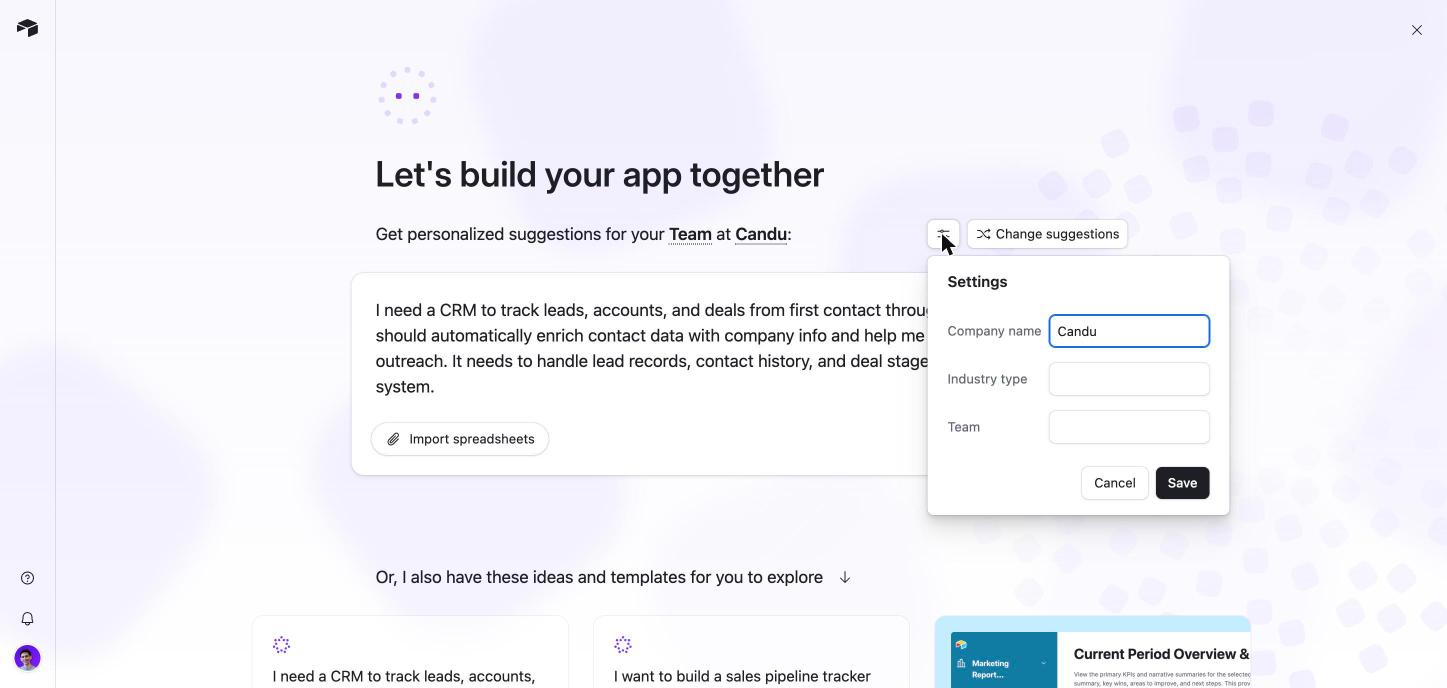
Inside the app, Home's first start option is "Start with Omni," ahead of templates, upload and blank. Click it and you land on "Let's build your app together," with "Get personalized suggestions for your Team at Candu." The prompt box isn't empty. It already holds a full brief written for us: a CRM to track leads, accounts and deals, with enrichment and personalized outreach.
Below it, an idea grid mixes cards labeled "Prompt" and "Template." "Change suggestions" opens three settings (company name, industry type and team), and those three fields shape every suggestion.
Why it works:
- No blank box. The hardest part of an AI builder is the first prompt, and Airtable writes it for you.
- Templates didn't go away. They sit next to prompts, so people who want to browse still can.
- Three fields are enough. The old wizard asked many questions. Now three answers personalize the whole start.
4. AI announcements arrive with the base


Open an existing base and two AI announcements are waiting. The first is personalized to the base: "Omni can analyze all the data in Product planning to create a high-quality report." The second introduces the AI credits meter and points at a new icon in the sidebar, previewing what you'll see ("4,321 available · Refreshes in 16d").
Why it works:
- The announcement is about your data. Naming the base makes "generate a report" concrete.
- It points at the new control. The credits callout is anchored to the icon it describes.
What to watch: the two announcements stack on open, and the second waits under the first. Two launches on one page is one too many. Queue them across sessions.
5. Every AI change comes with a receipt


Inside a base, Omni docks next to the data: "How can I help?" with a Tools menu that names its jobs ("Generate a report," "Generate a custom element," each with a one-line explanation) and a link to field agents.
We asked it for a small blog content calendar in a new test base. Sixteen seconds later ("Worked for 16s") it replied with a receipt: "I renamed the base to Blog Content Calendar and created one table, Posts. It has these fields:" then each field with its type, and "The table has no records, interfaces or automations. It's ready to use." A "Getting started 0/4" checklist appeared under it: a quick tour, field agents, a custom interface, and publishing and sharing.
Then we asked for something it couldn't fully do: a Channel field and a Kanban view. Omni searched the web, added the field, and told us the truth: "I added the Channel field to Posts, but I couldn't create the Kanban view." It followed with three manual steps and a citation.
Airtable's Omni page promises a plan before it builds ("Here's the plan… Anything to change before I build?"). Our small build skipped that step. It may only appear for bigger builds or in AI Labs [[VERIFY]].
Why it works:
- The receipt is the trust. You don't have to hunt for what changed. The AI tells you, field by field.
- Partial success is reported as partial. It says what it couldn't do and how to finish it, instead of claiming it's done.
- The checklist picks up where the AI stops, so the next step is never a blank screen.
There's no template for this one. The receipt has to come from your own AI, since only it knows what it changed. If you're building an AI that edits people's work, this is the pattern to copy first.
6. Undo is one click on every reply

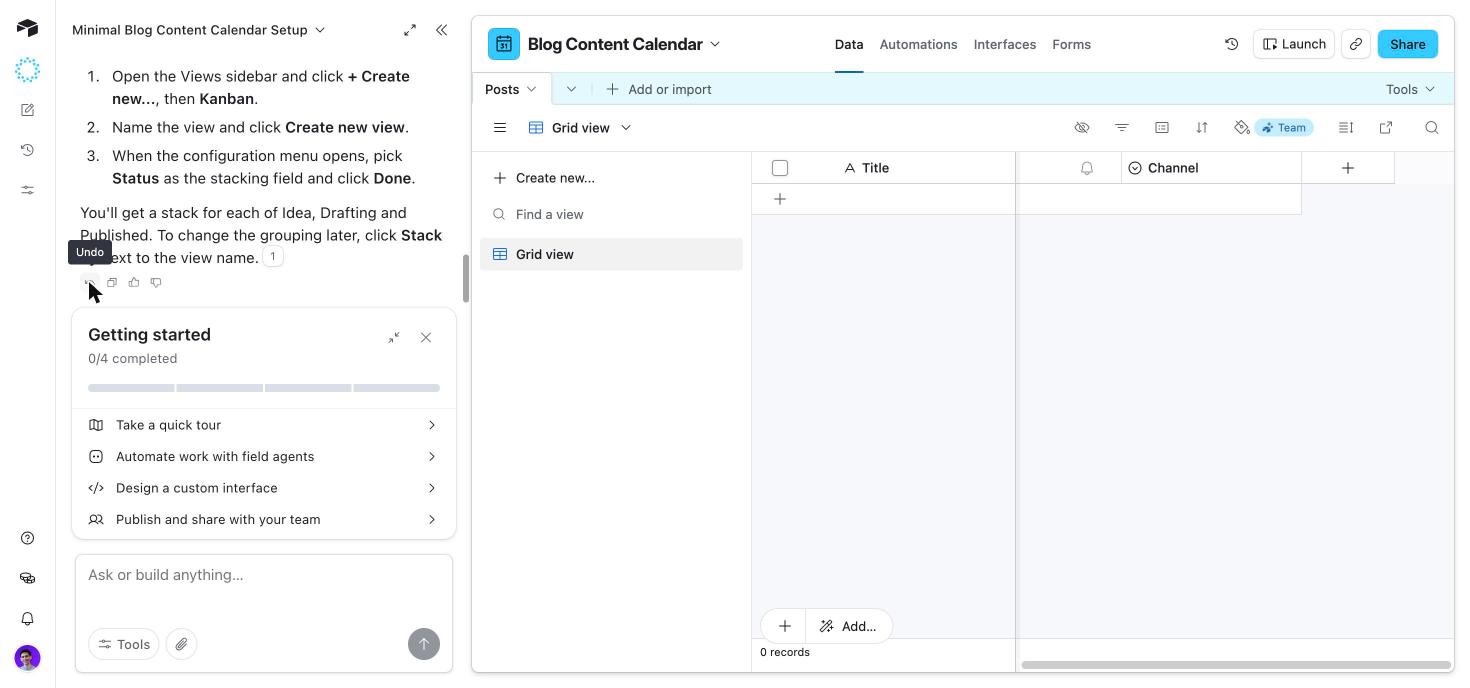


Airtable's governance page is headed "Nothing runs without your say so," and it promises: "Omni can undo any action it takes and revert back to your previous build."
In the app, that's an Undo button on every Omni reply. Click it and Omni receives the message "Undo your previous changes," then answers with another receipt: "I undid the change from my last response and removed the Channel field from Posts. The table is back to Title, Status, Publish Date and Author. The Kanban view was never created, so there was nothing to undo there."
Underneath Omni, the base still has its normal History menu: Undo, Redo, Snapshots, Record revision history and Trash.
Why it works:
- Undo sits where the change happened, on the reply, not in a settings page.
- The undo is explained too. It even says what it didn't need to undo.
- There's a real safety net under the AI. Snapshots and revision history don't depend on the AI getting it right.
What to watch: Undo is a prompt, not a rollback. The AI works out what to reverse. That worked well in our test, but for bigger changes a snapshot is the safer bet. Airtable's roadmap adds agent permissions and an audit log for Enterprise "in the coming months."
7. AI credits are a visible meter


The free plan includes AI: "0 of 2,000 monthly AI credits used." In a base, a sidebar meter shows "Team AI credits · 2,000 available," with the note "Your team shares AI credits when using field agents, AI automations, and Omni… Refreshes in 10d." Our whole test (a build, an edit and an undo) cost about 3 credits [[VERIFY: the meter read 2,001 after the build and 1,998 after the undo]].
The meter's settings icon opens the upgrade, and the Team plan summary lists "15,000 AI credits per seat/month" first, before anything else.
Why it works:
- AI on the free plan builds the habit before anyone is asked to pay.
- One shared pool, one meter. Field agents, automations and Omni all draw from the same number.
- The upgrade leads with AI, so the reason to pay is the thing people just used.
What to watch: the meter's settings icon goes straight to a checkout with the saved card. That's convenient, and surprising for someone who only wanted to see their usage. Put "see usage" and "buy more" behind separate clicks.
Relaunching in public

Airtable is now owned by Bending Spoons (the deal closed in early September 2026). Its new product lead, Alessandro Savarese, published the roadmap in public: "an upgraded Omni," Airtable Canvas, "a more powerful MCP," and "bring your own agent" ("Trigger agents like Claude from your automations"), rolling out "in the coming weeks." Agent permissions and an audit log for Enterprise follow. The same note promises customers that "nothing changes in your plan, price, or service."
The lesson for anyone relaunching around AI: say what's coming, say what won't change, and put control next to capability. [[VERIFY tone: keep this short and factual; the ownership change also came with layoffs, which the post shouldn't comment on]]
What to take from it
- Put the AI on the front door, and welcome the AI tools people already use.
- Let an assistant greet visitors with a question about what they're looking at.
- Never show a blank prompt. Write the first one for each company and team.
- Announce AI inside the work, one feature per session.
- Give every AI change a receipt, including what it couldn't do.
- Put undo on every reply, with real version history underneath.
- Include AI on the free plan, show one meter, and keep "see usage" apart from "buy more."
Build the whole flow
The in-app half, with Candu. Each template is a separate piece you can restyle in your brand.
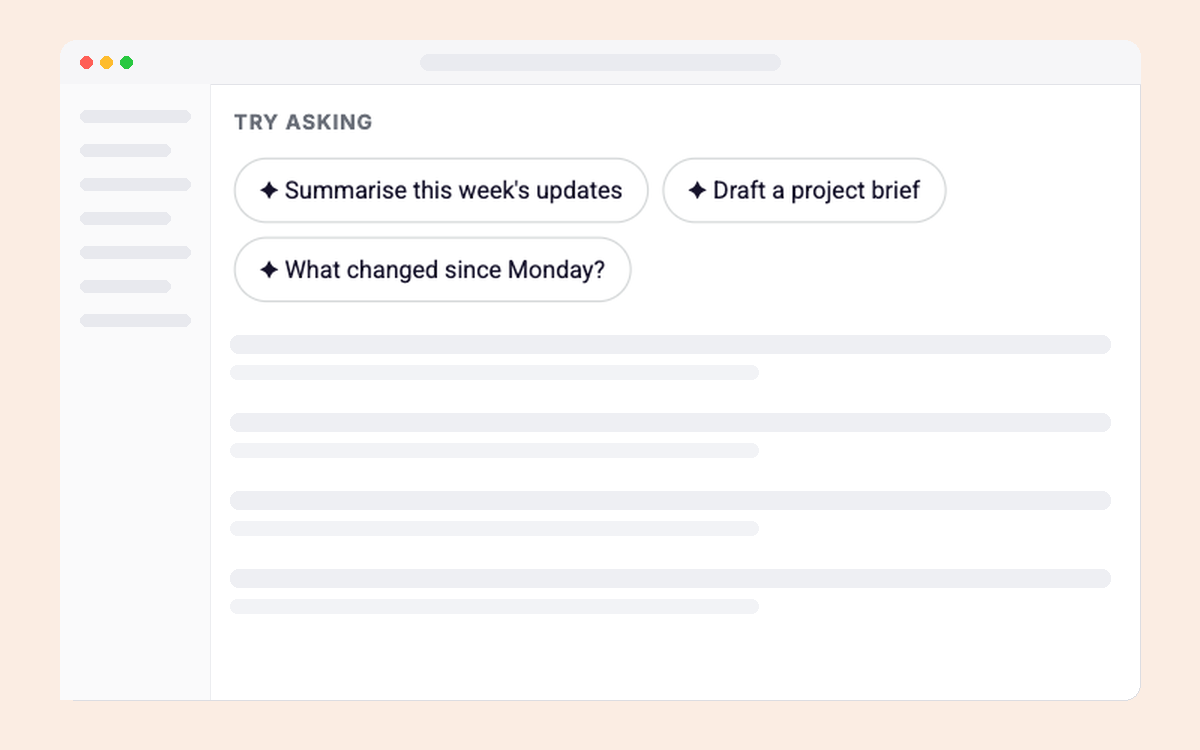

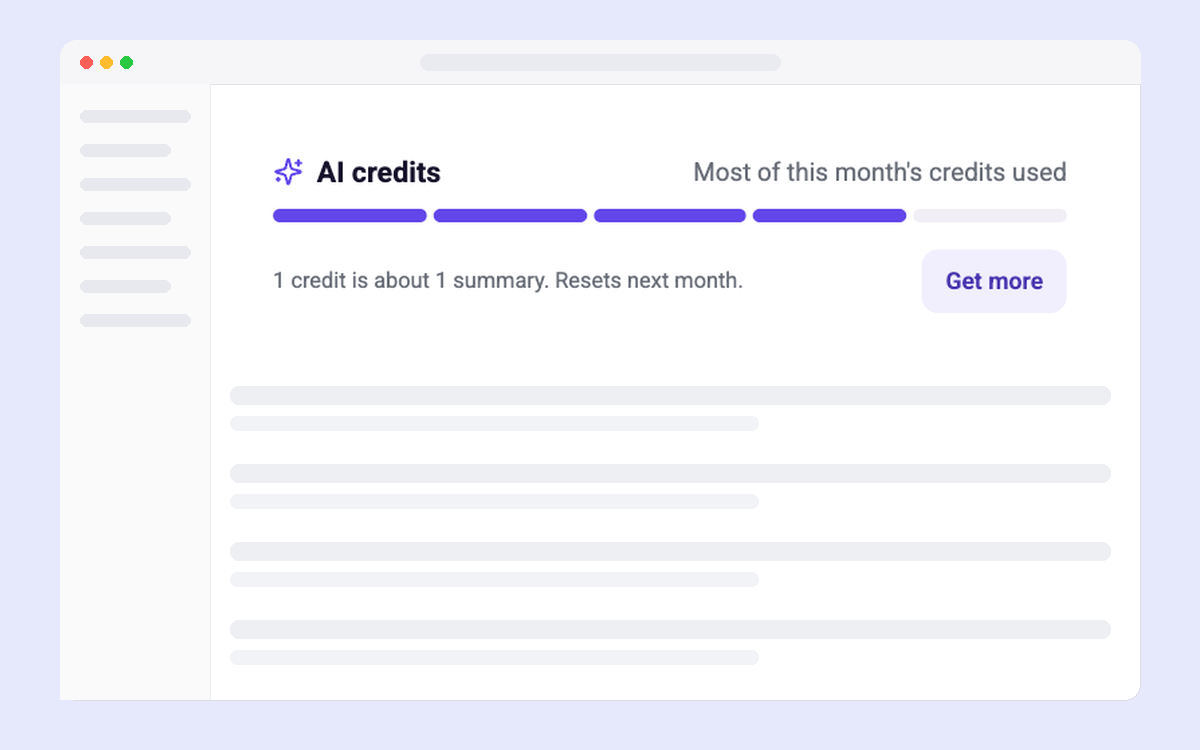
Have your own design for any of these? Build it from Claude, Figma or a screenshot.
More in this series: Shopify [[LINK]], Customer.io [[LINK]], Notion [[LINK]], and the hub, How product teams are launching AI inside their apps [[LINK]]. See all of Candu's AI features: https://www.candu.ai/capabilities/ai-features
FAQ
What is Airtable Omni?
Omni is Airtable's built-in AI assistant. You describe the app you want, and it builds the tables, fields and views from your own data, then edits them as you ask. An upgraded version is rolling out in fall 2026 [[VERIFY rollout status before publishing]].
Can you undo changes made by Airtable Omni?
Yes. Every Omni reply has an Undo button, which asks Omni to reverse its last change and explains what it reverted. The base's History menu also keeps Undo, Redo, Snapshots, Record revision history and Trash.
Does Airtable's free plan include AI?
Yes. In October 2026 the free plan included 2,000 monthly AI credits, shared across Omni, field agents and AI automations. The Team plan lists 15,000 AI credits per seat a month [[VERIFY on airtable.com/pricing before publishing]].
How should a SaaS product launch an AI that edits users' work?
Start people from a prompt written for them, show a receipt of every change the AI makes, and put undo next to each change. Say plainly what the AI couldn't do, and keep normal version history underneath so people never depend on the AI to fix its own mistakes.

Build Airtable’s AI launch in your product
Book a session and we’ll map the in-app launch and the agent for your product.
Book a sessionPrefer to start on your own? Start free with Candu
.png)

.png)